Learning goals
Select a kernel for a notebook.
Change the kernel used by an existing notebook.
Understand the impact of changing the kernel.
Selecting a kernel
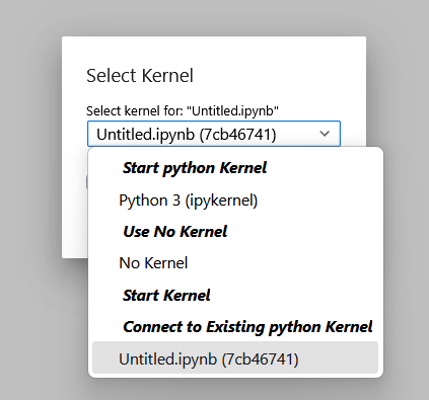
In JupyterLab, the active kernel is shown near the top-right of an open notebook. You can select or change it by clicking the kernel name. You can also use the Kernel menu and choose Change Kernel….

The exact list you see depends on the kernels available in your Jupyter4NFDI environment.
Suppose you create a variable in Python:
message = "hello"
print(message)
If you then change the notebook to an R kernel, the notebook cells and their existing outputs remain visible, but the new R kernel does not know about the Python variable message.
You would also need to use R syntax in newly executed cells, for example:
message <- "hello"
print(message)
When you switch kernel languages:
programming syntax changes;
package-management conventions change;
variables from the previous kernel are not carried over;
existing cell outputs remain in the notebook until you clear or replace them;
Markdown cells still work.
Note Changing a Python notebook to use an R kernel does not automatically convert Python code into R. The notebook file remains the same, but code cells must contain syntax understood by the selected kernel.